
Learning to use an Apple mouse for the first time can feel confusing, especially if you are used to a traditional PC mouse with two separate buttons. If you are searching for how to right click on apple mouse, you are not alone. Many new Mac users click and click without seeing the menu they expect, and assume the feature is missing.
The good news is that every modern Apple mouse supports right click, it is just turned off or hidden by default on some setups. In this article, you will learn exactly where to enable it, how to perform it on Magic Mouse, Magic Mouse 2, and older models, and what to do when it does not work. I will also cover Control click, Trackpad options, customization tips, and fixes for common issues so you can work faster on your Mac.
Why Apple Mouse Works Differently From Other Mice
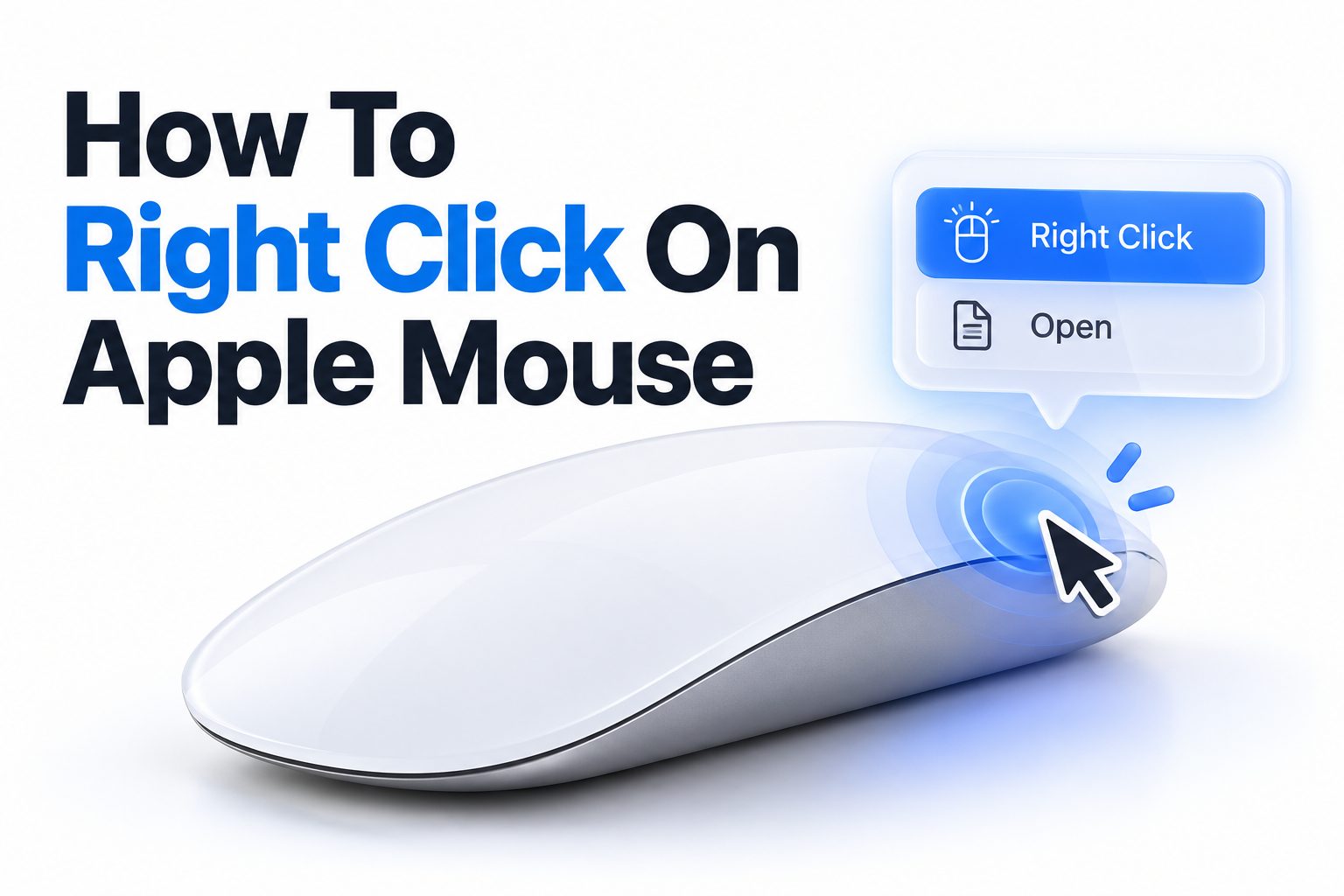
Apple chose a clean, minimal design with no visible split between left and right buttons. From the outside, a Magic Mouse looks like a single smooth shell. Inside, the top surface is touch sensitive and can tell whether you press on the left side or the right side.
That design choice keeps the desk setup simple, but it hides functionality from first time users. On a Windows mouse you can see and feel two buttons. On an Apple mouse you have to learn where to press and enable secondary click in software first.
Right Click Is Called Secondary Click on Mac
On macOS, Apple calls right click secondary click or Control click. All three terms mean the same action, opening the contextual menu. You will see secondary click in System Settings, while older guides and power users often say Control click.
Once you know the terminology, the settings make more sense. When a guide tells you to enable secondary click, it is telling you to turn on right click. When someone says Control click an item, they mean hold Control and tap to get the same menu.
How Apple Detects Left Versus Right Press
Magic Mouse uses capacitive sensors under the glass top plus a mechanical click mechanism. When your left finger rests on the left side, a press on the right side registers as a right click. If you leave a finger resting on the left side while clicking right, the Mac may still register a left click.
This is the most common reason new users think right click is broken. The fix is simple once you understand it. Lift your left finger slightly when you click with your right finger, just as you would on a physical two button mouse.
Enabling Secondary Click in System Settings
Most right click problems on a Mac are not hardware problems at all. The feature is simply disabled. macOS sometimes disables secondary click after a major update, after pairing a new mouse, or on a fresh user account. Checking this setting first saves a lot of time.
You only need to turn it on once. After that, your Mac remembers the preference for that mouse. If you use both a mouse and a trackpad, you need to enable the setting separately for each device.
Where to Find the Mouse Setting on Newer macOS
On macOS Ventura, Sonoma, and Sequoia, mouse controls moved to a new System Settings layout. The option is still easy to find once you know the path. You do not need any extra software or driver to enable basic right click.
The wording may vary slightly by version, but the location is consistent. Look under Bluetooth or Mouse settings rather than General. If your mouse is connected, you will see its name and image at the top of the page.
Steps to turn on right click on current macOS versions:
1. Click the Apple menu in the top left corner and open System Settings.
2. Scroll the left sidebar and select Mouse.
3. Look for Secondary click or Right click next to your connected mouse.
4. Click the dropdown and choose Click Right Side.
5. Test by pressing the right side of the mouse on the desktop to open the menu.
6. If you use a left handed setup, you can choose Click Left Side instead.
Where to Find the Setting on Older macOS
On macOS Monterey and earlier, the setting lives in System Preferences instead of System Settings. The layout uses icons rather than a sidebar, which is why many older tutorials look different from what you see now.
Go to Apple menu, System Preferences, then Mouse. Check the box for Secondary click and choose right or left side from the dropdown. The change applies immediately with no restart needed.
Right Clicking on Magic Mouse
The Magic Mouse and Magic Mouse 2 are the models most Mac users have today. They have no visible buttons and support touch gestures on the top surface. Learning the correct finger position makes right click feel natural within a day or two.
Place your index finger on the left side for normal clicks and your middle finger on the right side for right clicks. Do not rest both fingers heavily on the surface while clicking. A light hover with the opposite finger gives much more reliable results.
Clicking on the Right Side Correctly
To right click, lift your left finger off the surface, then press down firmly on the right top area of the mouse with your right finger. You should feel a physical click and hear a soft sound. A contextual menu should appear where your pointer is.
If you press with both fingers down, the Mac defaults to a left click for safety. This prevents accidental right clicks while scrolling. Practice the lift and click motion a few times on the desktop until it becomes muscle memory.
Using Tap and Gesture Settings
Magic Mouse also supports light taps and swipes, but a right click still requires an actual physical press, not just a tap. A light touch without pressing will not open the menu. This surprises users coming from a trackpad where tap to click is common.
You can adjust gesture options like swipe between pages and smart zoom in the Mouse settings pane. These gestures use one or two finger swipes on the surface. They do not replace right click, but they reduce how often you need it for navigation. For related touch controls, see [Internal Link: Mac Trackpad Gestures Guide].
Right Clicking on Older Apple Mice
If you have a white Mighty Mouse with a scroll ball or an older wireless Apple mouse, the process is similar but the hardware feels different. The Mighty Mouse has a single shell with hidden sensors that detect left or right pressure, plus side squeeze buttons.
These older models are more sensitive to finger placement. Dust under the scroll ball or worn sensors can also cause missed clicks. Cleaning and proper hand position help a lot before you assume the mouse is failing.
How Mighty Mouse Handles Right Click
On the Mighty Mouse, enable secondary click in System Preferences, Mouse, just like on newer models. Then lift your left finger and press the right side of the shell. You should feel the whole top move down slightly.
Avoid squeezing the side buttons while clicking, because that can cancel the right click. Hold the mouse loosely with your thumb and ring finger on the sides without pressing inward, then click with your middle finger on the right.
Differences With First Generation Wireless Mouse
The first Apple Wireless Mouse, model A1015 and similar, is a Bluetooth optical mouse with a similar seamless top. Pair it through Bluetooth settings, then enable secondary click. The right side click area is smaller than on Magic Mouse, so aim for the far right edge.
Battery level affects click reliability on these older Bluetooth models. If right click works sometimes but not others, replace the AA batteries or recharge and retest. Low power often shows up as missed secondary clicks first.
Key differences between common Apple mouse models:
- Magic Mouse 2 has a rechargeable Lightning or USB C port, touch surface, and far right click zone.
- Magic Mouse 1 uses AA batteries, same touch surface, slightly heavier feel when clicking.
- Mighty Mouse uses a scroll ball, pressure sensors, and side buttons that need a light grip.
- Older wireless Apple mouse uses optical tracking, smaller right click area, and AA batteries.
- All models require secondary click to be enabled in macOS before right click works.
Using Control Click as a Reliable Alternative
Control click is the built in Mac alternative that works with any mouse, trackpad, or even keyboard only setups. It produces exactly the same menu as a right click. Many long time Mac users prefer it because it works even when secondary click is misconfigured.
This method is especially useful on shared Macs, in classrooms, or when troubleshooting. If right click stops working, you can keep working with Control click while you fix the setting. It never needs to be enabled.
How to Perform a Control Click
Hold down the Control key on your keyboard, usually labeled ctrl, then press the main left click button on your Apple mouse. Release the Control key after the menu appears. You can also hold Control and tap on a trackpad.
Make sure you press Control, not Command. Command click does something different in most apps, like opening a link in a new tab. Control is always the leftmost modifier on Apple keyboards, which makes it easy to find without looking.
When Control Click Is More Practical
Control click helps when your right hand is busy, when you use a left handed mouse setup, or when a guest does not know your custom click assignment. It also helps in Boot Camp or remote desktop sessions where button mapping can be inconsistent.
Teachers and support staff often teach Control click first because it works the same on every Mac. Once a new user is comfortable, they can switch to the faster one handed right side click for daily work.
Adjusting Tracking, Click Pressure, and Response
Default Apple mouse settings do not suit everyone. If the pointer moves too fast, if clicks feel stiff, or if right click menus appear too slowly, small adjustments make a big difference. Spend two minutes tuning these options after you enable secondary click.
Proper tuning reduces misclicks and hand strain. A mouse that is too sensitive causes accidental selections. A mouse that is too slow forces extra wrist movement. The right balance depends on screen size, desk space, and hand size.
Tuning Pointer Speed and Double Click Timing
Open System Settings, Mouse, and adjust Tracking speed with the slider. Move the mouse across the full screen to test. On large 27 inch displays, a faster tracking speed saves effort. On laptops, a medium speed gives better control.
Next, open Accessibility, Pointer Control if you need double click speed control. A slower double click setting helps users with limited dexterity. This does not change right click directly, but it makes overall clicking more comfortable and reduces errors.
Checking Scroll Direction and Gestures
macOS defaults to natural scroll direction, where content moves with your finger. Many Windows switchers find this reversed. In Mouse settings you can toggle natural scrolling off if you prefer the traditional wheel feel.
Also review Smart zoom and swipe gestures. An accidental two finger swipe can hide the window you just right clicked. Turn off gestures you do not use. A simpler setup means fewer surprises while you learn right click placement. For system wide personalization tips, see [Internal Link: macOS Sonoma Settings Tutorial].
Quick checklist to tune your Apple mouse after enabling right click:
- Confirm secondary click is set to Click Right Side for your user account.
- Set tracking speed so you can cross the screen without lifting twice.
- Turn off natural scroll if web pages move the opposite way you expect.
- Disable unused swipe gestures that cause accidental navigation.
- Test right click in Finder, Safari, and TextEdit to confirm consistency.
- Clean the mouse surface with a dry microfiber cloth for better sensing.
- Check battery or charge level to rule out low power misclicks.
Fixing Right Click When It Stops Working
When right click suddenly stops, the cause is usually software, interference, or finger position rather than a dead mouse. Work through the likely causes in order instead of buying a replacement right away. Most issues resolve in under five minutes.
Start with settings, then connection, then hardware. This order avoids wasted effort. A setting changed by an update is far more common than a failed click sensor, especially on Magic Mouse 2 which has few moving parts.
Common Software Causes and Quick Resets
First, reopen Mouse settings and confirm secondary click is still enabled. Toggle it off and back to Click Right Side. Restart the app you were using, then test on the desktop. If it works on the desktop but not in one app, that app may override click behavior.
Next, disconnect and reconnect the mouse. For Bluetooth models, turn Bluetooth off and on, remove the device and re pair if needed. Restart your Mac if the problem started right after an update. This clears temporary driver glitches that block secondary clicks.
Hardware, Battery, and Surface Issues
Low battery causes intermittent clicks, lag, and missed right clicks. Charge Magic Mouse 2 for at least 15 minutes or replace AA batteries in older models. Also clean the bottom sensor with a dry cloth and use a plain mouse pad.
Glossy glass desks, mirrors, and uneven surfaces confuse optical sensors. Move to a matte pad for testing. Remove USB 3 hubs or dongles placed right next to the Bluetooth antenna, since they can cause wireless interference that looks like a click failure.
Useful Gestures and Shortcuts for Mac Right Click Users
Right click is only one part of Mac pointer control. Once it works reliably, a few extra gestures and keyboard shortcuts reduce how often you need to open menus at all. These small habits add up over a workday of browsing, editing, and file management.
You do not need to memorize everything at once. Learn one shortcut for Finder, one for the browser, and one gesture for Mission Control. Add more only when they solve a repeated task.
Trackpad Options If You Switch Devices
Many Mac users switch between Magic Mouse at a desk and built in trackpad on the go. On the trackpad, right click is usually a two finger tap or a press in the bottom right corner. You set this in System Settings, Trackpad, under Secondary click.
Keeping the same mental model helps. If your mouse uses right side click, set your trackpad to Click or Tap With Two Fingers. Both actions feel like a right click variant, so you do not have to relearn when you unplug the mouse.
Keyboard Shortcuts That Pair Well With Right Click
Shift F10 or Fn Shift F10 opens the context menu for the selected item on many Mac keyboards without a mouse. Control click remains the universal fallback. In Finder, Command click selects multiple files, then a single right click applies an action to all of them.
In Safari and Chrome, holding Command while clicking opens links in the background while right click gives options like Open in New Window. Learning both means fewer trips to the menu bar. Over time you will right click mainly for file actions, spelling suggestions, and app specific tools.
Practical habits for faster right click workflow:
- Do lift your left finger before pressing the right side to avoid left click priority.
- Do test new settings in Finder first, where menus are simple and predictable.
- Do learn Control click as a backup for shared Macs and troubleshooting.
- Do not press with both fingers at once and expect a reliable right click.
- Do not ignore low battery warnings, since they cause missed clicks first.
- Do not enable every gesture at once, start with right click plus one swipe.
Conclusion
Getting comfortable with an Apple mouse mostly comes down to enabling the right setting and adjusting your finger position. Once secondary click is on and you remember to lift the opposite finger, the menu appears every time. Control click gives you a dependable backup on any Mac setup.
With tracking tuned, the surface clean, and power levels healthy, most right click issues stay fixed. Keep practicing the light hover motion and use gestures sparingly until clicks feel automatic. Now that you know how to right click on apple mouse reliably, you can focus on your work instead of fighting the hardware.
Frequently Asked Questions
Why is my Apple mouse not right clicking?
Your Apple mouse may have secondary click disabled, low battery, or both fingers resting on the surface. Enable Click Right Side in System Settings, Mouse, lift your left finger, then press firmly on the right side to test.
How do I right click on Magic Mouse 2?
Enable secondary click in System Settings, Mouse, then lift your left finger and press down on the top right of the mouse. You must physically click, not just tap. A firm press opens the contextual menu at the pointer.
Can I change right click to the left side?
Yes. Open System Settings, Mouse, and change secondary click from Click Right Side to Click Left Side. This helps left handed users. Your normal left click then moves to the right side automatically.
What is Control click on Mac?
Control click means holding the Control key while left clicking. It opens the same menu as right click and works with any mouse or trackpad. It is useful when secondary click is off or when helping someone on an unfamiliar Mac.
Does Apple mouse support middle click?
Magic Mouse does not have a dedicated middle button, but many apps let you assign middle click to a gesture with third party tools. For basic browsing, Command click or Control click usually provides the menu or tab action you need.