
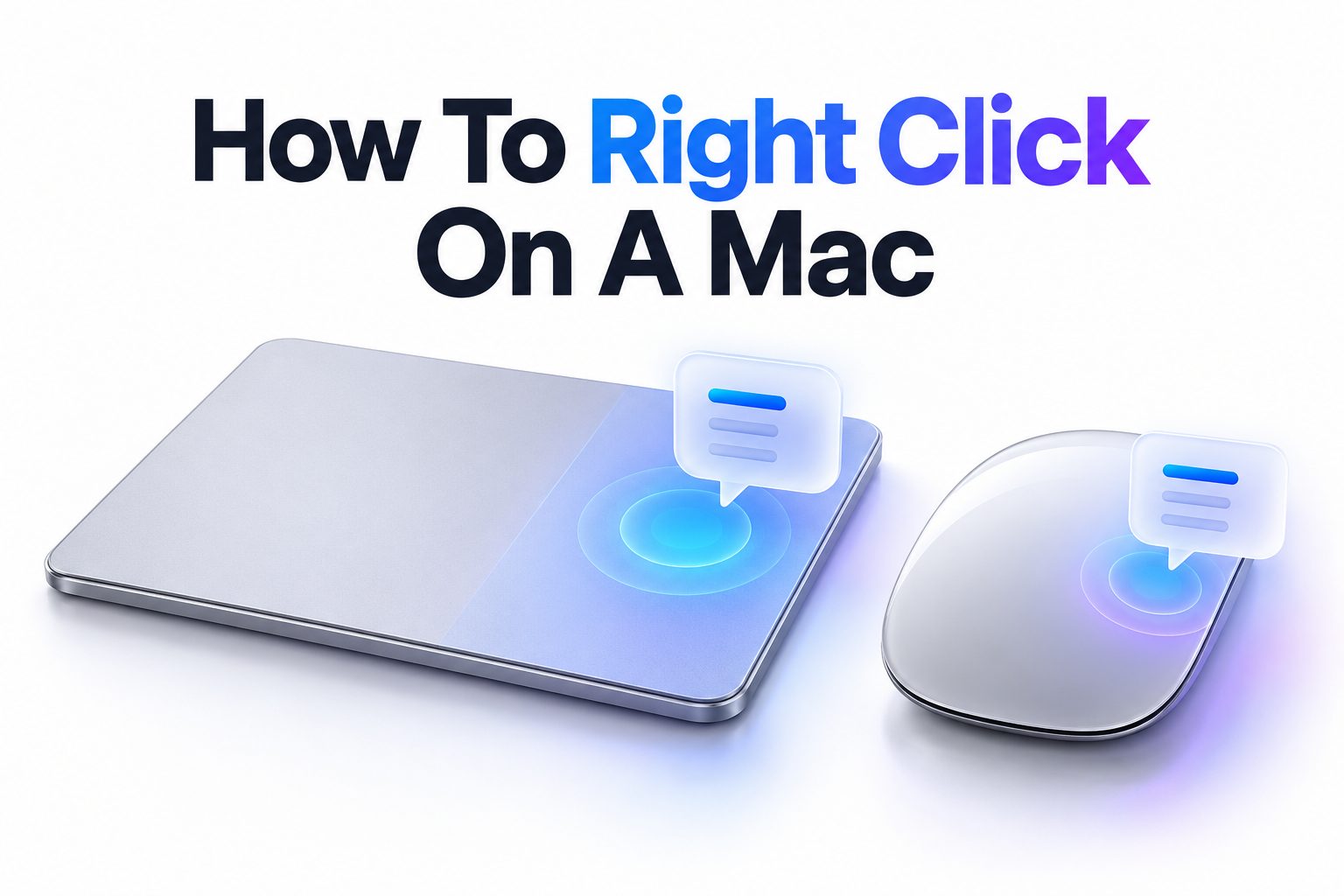
Switching from Windows to Mac often comes with one small moment of confusion. You move the mouse, look for the right button, and find nothing to click. Learning how to right click on a mac solves that problem in seconds, and it opens up menus you will use every day.
On macOS, right click is called secondary click or Control-click. It works on trackpads, the Apple Magic Mouse, and almost any regular USB or Bluetooth mouse. Once enabled, it lets you copy files, rename folders, check spelling, preview images, change desktop settings, and manage tabs in Safari.
In this article, you will learn every reliable way to right click, how to turn it on in System Settings, how to customize gestures, and what to do when it stops working. The steps cover MacBook Air, MacBook Pro, iMac, and Mac mini running recent versions of macOS.
Why Right Click Feels Different on Mac
Apple designs its hardware with clean surfaces and few visible buttons. The MacBook trackpad is one smooth glass panel. The Magic Mouse has no separate left and right buttons. Clicks are detected by pressure, touch sensors, and finger position instead of physical switches.
That design choice keeps things minimal, but it hides the secondary click until you turn it on. Many new Mac owners assume their device cannot right click at all. In practice, the function is always there. You just need to choose which gesture or button triggers it.
Secondary Click on Apple Devices
On Mac, a right click usually produces a contextual menu. The options change based on what you clicked. Clicking a file shows Open, Get Info, Rename, Compress, Share, and Tags. Clicking text shows Cut, Copy, Paste, Spelling, and Look Up.
The same idea applies in apps like Safari, Photos, Mail, Finder, and Preview. The menu saves time because it places relevant actions next to your cursor instead of forcing you to search through the top menu bar.
Using Secondary Click on a Mac Trackpad
Most MacBook users prefer the built-in trackpad for right click once they practice the gesture. The default method is a light tap or press with two fingers at the same time. Place the cursor over an item, tap with two fingers, and the contextual menu appears instantly.
You can also set the trackpad to register a click in the bottom right or bottom left corner as a right click. That option feels familiar if you came from a Windows laptop with a dedicated right button zone. Test both styles and keep the one that feels more consistent.
Two Finger Tap Setup
Open System Settings from the Apple menu, then choose Trackpad in the sidebar. Under Secondary click, select Click or Tap with Two Fingers. Make sure Tap to click is enabled if you prefer tapping without pressing down.
Practice in Finder to build muscle memory. Rest your index and middle finger together, aim at a file icon, and tap lightly. A firm press with two fingers works the same way if Tap to click is off. Keep your fingers close together to avoid accidental scrolling.
Corner Click as an Alternative
Some people find two-finger taps awkward, especially on larger trackpads. In the same Trackpad settings, you can choose Click in Bottom Right Corner or Click in Bottom Left Corner for secondary click. Right-handed users usually pick the right corner.
With this setup, a single-finger press in that corner opens the right-click menu. It is precise and easy to repeat. The trade-off is that you lose a small area for normal left clicks, but most users adjust within a day.
Quick Tips for Trackpad Right Click
- Keep fingers dry and clean for reliable gesture detection
- Enable Tap to click if you want lighter, faster taps
- Increase Tracking speed slightly if the cursor feels sluggish
- Turn on Haptic feedback to feel a distinct click response
- Practice two-finger taps in Finder before trying them in fast-paced apps
Getting Right Click to Work on Magic Mouse
The Apple Magic Mouse looks like it has no buttons, but the entire top surface is touch sensitive. To right click, you press down on the right side of the mouse. The system detects which side your fingers are on and shows the contextual menu.
This only works if secondary click is enabled. Go to System Settings, choose Mouse, then set Secondary click to Click Right Side. If you are left-handed, you can set it to Click Left Side instead. Lift your left finger slightly when right clicking to prevent mixed signals.
Common Magic Mouse Mistakes
A frequent issue is resting both fingers on the mouse while clicking right. The Mac then cannot tell which side you meant and may register a left click instead. Use only one finger on the right side during the click.
Another problem is a very light touch that does not press down enough. The Magic Mouse needs a physical click, not just a tap. You should feel and hear a subtle click. Cleaning the surface also helps, since oil and dust can interfere with finger detection.
Using Control-Click as a Backup
Control-click has worked on Macs for decades and remains useful on every model. Hold down the Control key, then click the trackpad or mouse button as normal. Release Control after the menu appears.
This method is ideal when gestures are temporarily unreliable or when you use a drawing tablet, presentation remote, or single-button mouse. It requires two hands, but it never needs setup and works in every app that supports contextual menus.
Connecting and Using Other Mice With Mac
You do not need Apple accessories to right click. Almost any wired USB mouse, wireless Logitech mouse, or Bluetooth mouse works immediately. The right physical button usually maps to secondary click without extra software.
Pair the mouse through Bluetooth settings or plug in the USB receiver, then move the cursor and right click as you would on Windows. If the buttons feel reversed, open System Settings, select Mouse, and adjust the Secondary click option. Gamers and designers often prefer this setup for precision.
Setting Up Logitech and Similar Mice
Many third-party mice include extra side buttons and a clickable scroll wheel. macOS will recognize the basic left, right, and middle clicks on its own. For extra buttons, install the manufacturer app such as Logi Options+ to assign Mission Control, Forward, Back, or App Expose.
Keep the built-in macOS secondary click enabled even if you install that software. That way the standard right-click menu still appears in Finder and Safari. Use the extra buttons for shortcuts, not as a replacement for the main contextual menu.
Practical Examples for External Mice
- Right click a desktop file to Compress, Duplicate, or Share it
- Right click a Safari link to Open in New Tab or Copy Link
- Right click an image in Photos to Rotate, Edit, or Set as Wallpaper
- Right click the Dock to access Options, Remove, or Show in Finder
- Right click a misspelled word in Pages to see corrections
For users switching between systems, a standard two-button mouse can make macOS feel more familiar. The [Internal Link: Mac Trackpad Gestures Guide] explains how to combine trackpad gestures with a mouse for faster navigation.
Customizing Secondary Click Settings in macOS
Once basic right click works, fine-tuning makes it more comfortable. Open System Settings, then review both Mouse and Trackpad sections. You can change click pressure, tracking speed, scroll direction, and which corner triggers secondary click.
On newer macOS versions like Ventura, Sonoma, and Sequoia, these controls are grouped more clearly than in older System Preferences. Changes apply instantly, so test each adjustment in Finder. If something feels off, use the default Restore button and start again.
Adjusting Click Pressure and Speed
Some users trigger right click by accident when tapping too hard. Lowering click pressure or enabling Silent clicking can reduce strain. Raising tracking speed helps you reach targets with smaller hand movements, which makes two-finger taps more accurate.
Visit Accessibility settings if you need larger adjustments. Under Pointer Control, you can change double-click speed and spring-loading delay. Those options help users with limited dexterity or anyone using a larger external trackpad.
Keyboard Methods That Open the Same Menu
A mouse is not the only way to access contextual actions. macOS includes keyboard combinations that produce the same result, which is helpful for accessibility and for power users who prefer to keep hands on the keyboard.
The simplest is Control plus click, as mentioned earlier. You can also select an item with arrow keys, then press Shift plus F10 on an extended keyboard with function keys. On compact MacBook keyboards, use Fn plus Shift plus F10 to trigger the same menu in many apps.
Using Spell Check and Quick Actions Without a Mouse
Select a word in TextEdit or Pages, then hold Control and press the trackpad button with one finger. The spelling menu appears with Suggestions, Ignore, and Learn Spelling. The same approach works for file Quick Actions in Finder.
In Finder, select a file with arrow keys, press the Menu key combination for your keyboard, and choose Quick Actions like Rotate, Create PDF, or Convert Image. These keyboard paths take longer to learn but save effort during long writing or organizing sessions.
Checklist for Keyboard Right Click Users
- Learn Control-click first because it works everywhere
- Enable Full Keyboard Access to navigate menus with Tab and arrows
- Memorize Command plus comma to open app Settings quickly
- Use Command plus C, Command plus X, Command plus V after opening menus
- Practice Escape to close the contextual menu without choosing an action
- Try Voice Control if holding Control while clicking is uncomfortable
Trackpad Gestures Worth Learning on MacBook
Right click becomes more powerful when combined with other macOS gestures. For example, two-finger scroll moves through long pages, pinch to zoom enlarges images, and three-finger drag moves windows. Together they reduce trips to the menu bar.
Take time to visit the Trackpad settings pane and watch the short preview videos. Each gesture shows an animation of finger placement. Enable one new gesture at a time and use it for a few days before adding another. That pace prevents confusion.
Force Click for Extra Details
On MacBooks with Force Touch trackpads, pressing harder until you feel a second click triggers Force Click. Force clicking a word shows a dictionary definition. Force clicking an address shows a Maps preview. Force clicking a file icon shows a Quick Look preview.
Force Click does not replace right click, but it complements it. Use Force Click when you want a fast preview, and use secondary click when you want a list of actions. You can adjust Force Click pressure under Trackpad settings or turn it off if you trigger it by accident.
Fixing Right Click When It Stops Working
Right click problems usually come from settings, dirt, or Bluetooth interference rather than hardware failure. Start with the simplest checks before assuming something is broken. Confirm that Secondary click is still enabled after a macOS update, since updates sometimes reset trackpad and mouse preferences.
Clean the trackpad or mouse surface with a slightly damp, lint-free cloth. Restart Bluetooth if you use a wireless mouse. Remove the device in Bluetooth settings, then pair it again. Restarting the Mac also clears temporary driver glitches that block gestures.
Software Conflicts and Safe Checks
Third-party mouse utilities, screen recording tools, and window managers can intercept clicks. Temporarily quit those apps and test right click in Finder. If it works, re-enable apps one by one to find the conflict.
Check for stuck modifier keys by opening Keyboard Viewer from Input settings. Test in a new user account to rule out corrupted preferences. As a last step, reset NVRAM or the Bluetooth module only if Apple Support guides recommend it for your specific model. The [Internal Link: macOS Keyboard Shortcuts Basics] includes more fixes for input-related issues.
Common Mistakes That Block Right Click
- Secondary click turned off after an update
- Two fingers spread too far apart during the tap
- Left finger still pressing when attempting a right-side Magic Mouse click
- Low battery causing delayed Bluetooth response
- Protective case pressing on the trackpad edge
- Third-party app overriding the default click behavior
Everyday Tasks That Are Faster With Right Click
Right click is more than a convenience. It shortens common workflows across work and school. In Finder, you can batch rename photos, compress folders, tag project files, and create aliases without opening extra windows.
In Safari, right click a tab to Duplicate, Pin, Mute, or Move it to another window. In Mail, right click an attachment to Save, Quick Look, or Share. In Photos, right click to Create Slideshow, Add to Favorites, or Show in Album. These small savings add up during a busy day.
Organizing Files With Contextual Menus
Select multiple files in Finder by holding Command and clicking each one, then right click the selection. You can apply the same Tag color, move everything to a new folder, or compress them into one archive. That is much faster than handling files individually.
Right click column headers in List view to add Date Added, Size, or Kind columns. Right click the Finder toolbar to Customize Toolbar and add AirDrop, Delete, or Quick Look buttons. Once you know where menus appear, Finder becomes easier to shape around your habits.
Conclusion
Mastering secondary click changes how smoothly macOS feels. A two-finger tap, a press on the right side of the Magic Mouse, or a simple Control-click all lead to the same helpful menu. The best choice depends on your hands, your hardware, and whether you work on a laptop or desktop.
Take five minutes to enable the right option in System Settings, clean your device, and practice in Finder and Safari. Pair those basics with Force Click and keyboard shortcuts for even faster editing and file management. If you ever forget how to right click on a mac, return to these settings and pick the gesture that feels most natural for daily use.
Frequently Asked Questions
Why secondary click is missing on Mac trackpad?
Secondary click is often disabled by default or reset after an update. Open System Settings, select Trackpad, and set Secondary click to Click or Tap with Two Fingers. Test the gesture in Finder immediately.
Why Magic Mouse right click opens left click instead?
This happens when both fingers touch the surface during the click. Lift the left finger, place only the right finger on the right side, then press down firmly. Check Mouse settings to confirm right side is selected.
How Control-click differs from normal right click on Mac?
Control-click produces the same contextual menu as secondary click. Hold Control, click once, then release. It works without enabling gestures and is useful with tablets, single-button mice, or temporary trackpad issues.
Why right click works in Finder but not in browser?
Browser extensions, outdated Safari or Chrome versions, and custom website scripts can block contextual menus. Disable extensions, update the browser, and test on a plain page. Most Finder menus remain unaffected.
How to change right click to left corner on Mac?
Open System Settings, go to Trackpad or Mouse, and open the Secondary click menu. Choose Click in Bottom Left Corner for trackpads or Click Left Side for Magic Mouse. The change applies instantly across apps.